
Fishing Tides 使用教程How to Use Fishing Tides
出钓前一眼就知道今天去不去得:风、浪、潮汐帮你算好,给一个绿 / 黄 / 红的判定。下面把 app 里每一个贴士功能都配图讲清楚,照着做就会用。
Know before you go: wind, waves and tides are worked out for you and summed up as a green / yellow / red verdict. Every feature from the in-app tips is explained below with screenshots — just follow along.
🍎 在 App Store 免费下载Free on the App Store
1 Manage home spots2 Add & name a spot3 Reading the forecast4 Your standard5 Tides6 Share a day card7 Catches + AI ID8 Sign-in & widget9 Hide / share spots
1首页:管理你的钓点Home: manage your spots
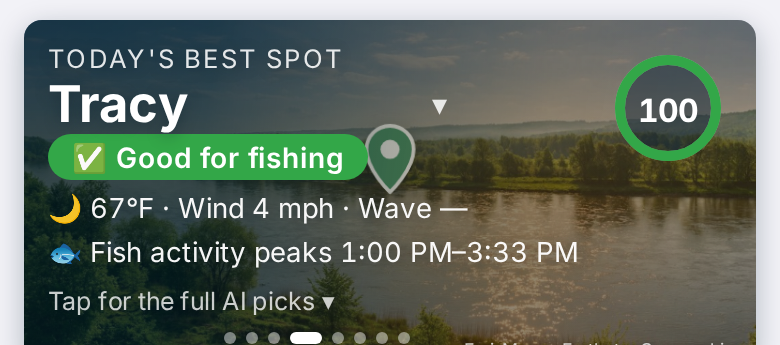
首页上方的大卡是「今日最佳钓点」:分数环越高越值得去,左右滑可以看其他钓点。下方就是你的钓点墙。
The big card on top is Today's Best Spot — the higher the score ring, the better the day; swipe sideways for the runners-up. Below it is your spot wall.
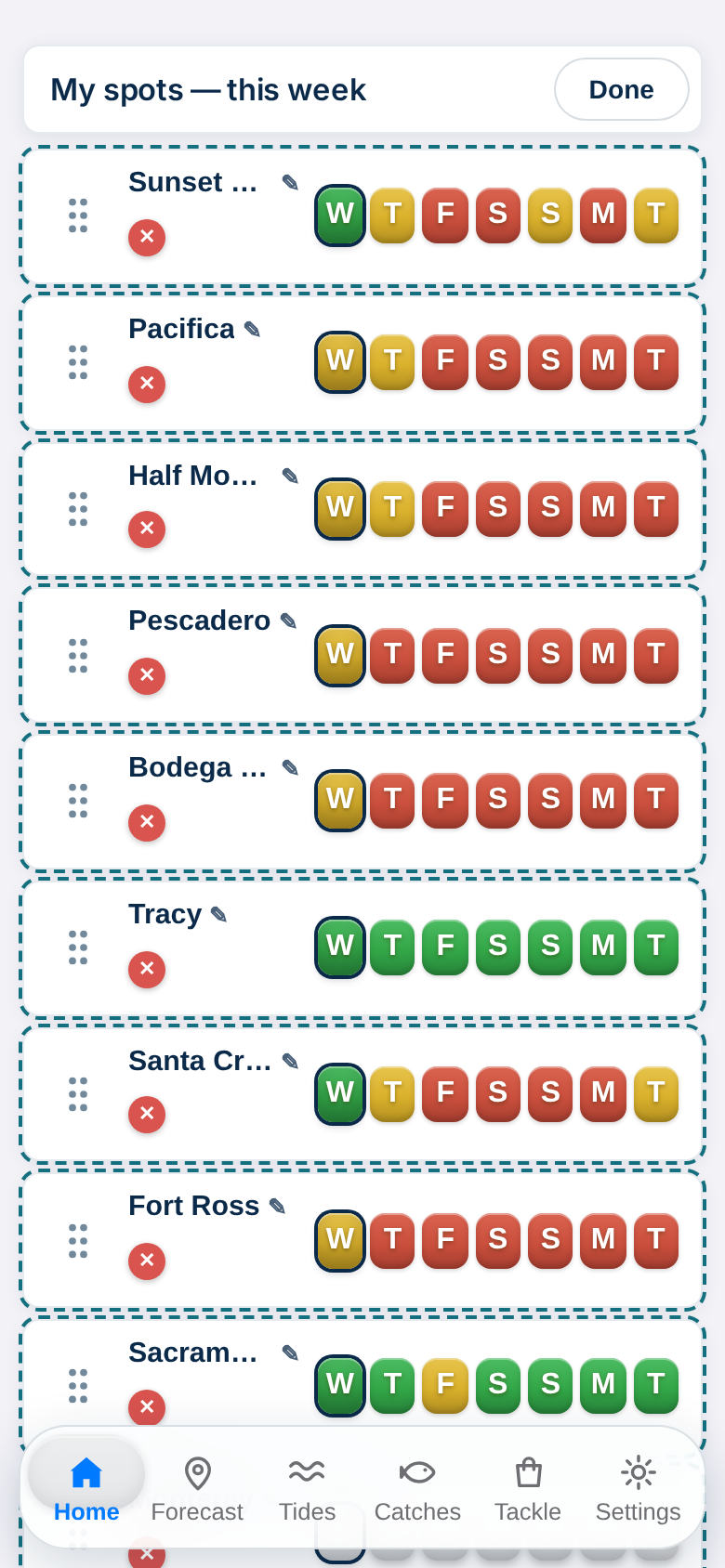
- 钓点墙每一行是一个钓点,七格颜色 = 未来七天每天的判定:绿 = 好钓、黄 = 勉强、红 = 不建议。
- 点某一天的格,直接打开该钓点那一天的详情;点钓点名字,打开今天。
- 点右上角「编辑」进入上图的样子:红 ✕ 把钓点移出首页(收藏还在,随时可以再加回);
- 按住左边的拖动手柄上下拖,可以自己排顺序;点 ✎ 可以给钓点改名;改完按「完成」。
- 首页最多显示 10 个钓点。想加新钓点:去「预报」页在地图或搜索里找到它,点星星 ⭐ 收藏就会上墙(见下一节)。
- Each wall row is one spot, and the seven coloured cells are the verdict for the next seven days: green = good, yellow = marginal, red = not recommended.
- Tap a day cell to open that spot on that day; tap the spot's name to open it for today.
- Tap Edit (top right) to get the screen above: the red ✕ removes a spot from Home (it stays in your favourites and can be added back anytime);
- Drag the handle on the left to reorder the rows; tap ✎ to rename a spot; tap Done when finished.
- Home shows up to 10 spots. To add one: find it on the map or by search in the Forecast tab and star it ⭐ (next section).
2在地图上添加新钓点,并命名Add a new spot on the map — and name it
任何你平时钓鱼的地方都可以加进来,哪怕地图上没有标记。
Any place you actually fish can be added, even if it has no marker on the map.
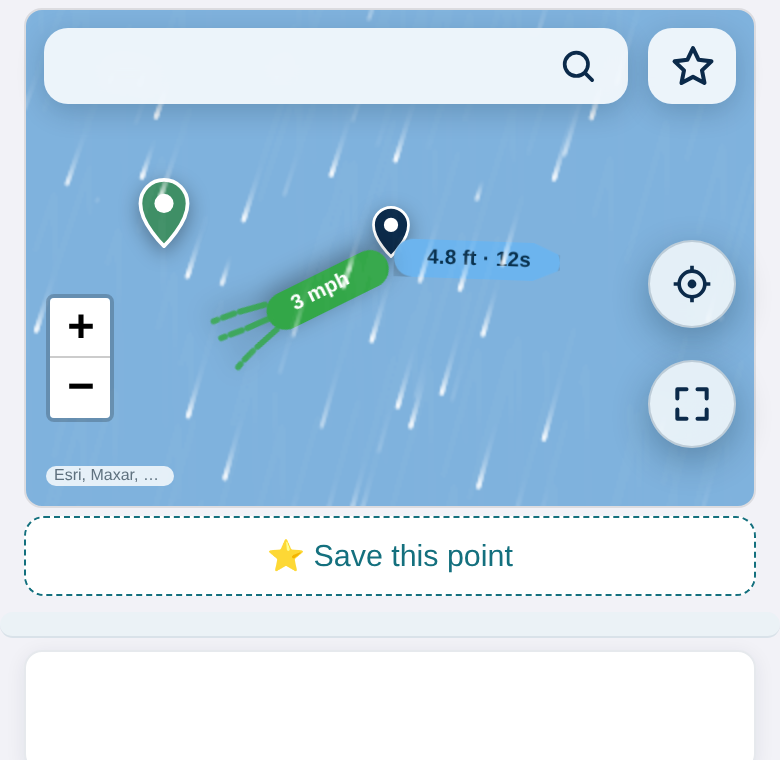
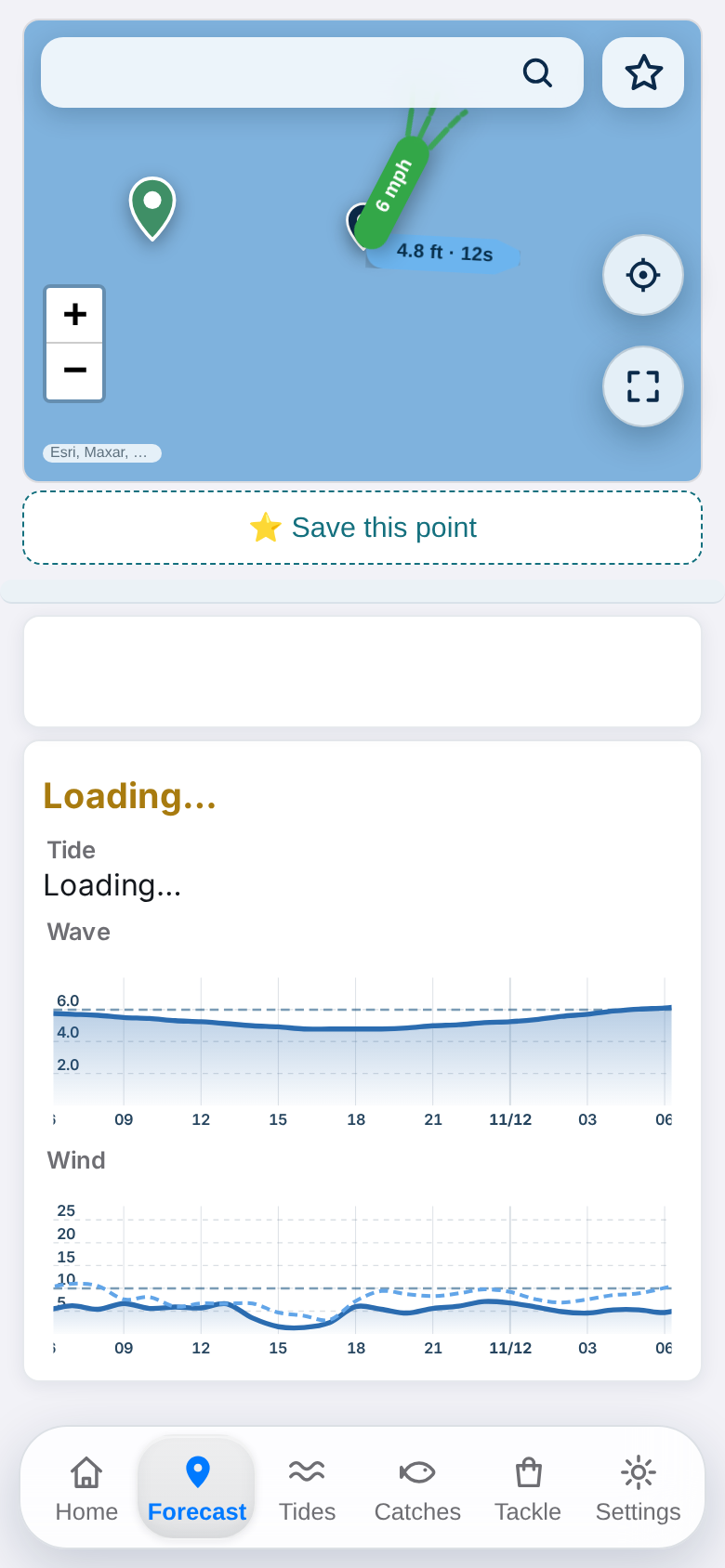
- 去「预报」页,在地图上长按 1 秒(避开已有的标记),任意位置都会落下一支绿色的针,下方出现「⭐ 保存这个地点」。
- 点保存,会弹出命名框:输入你自己的名字(例如「我的秘密钓点」),按确定。
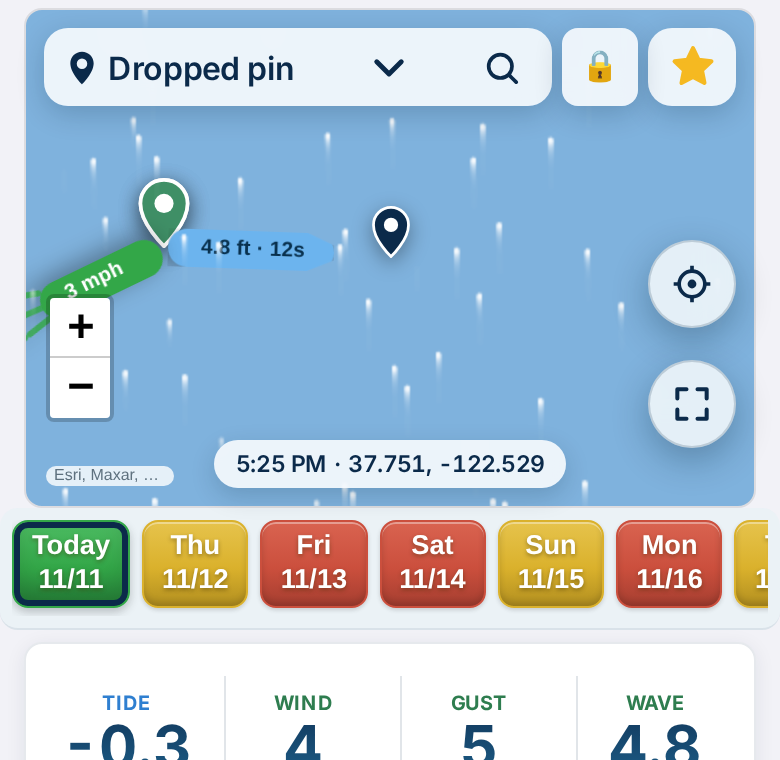
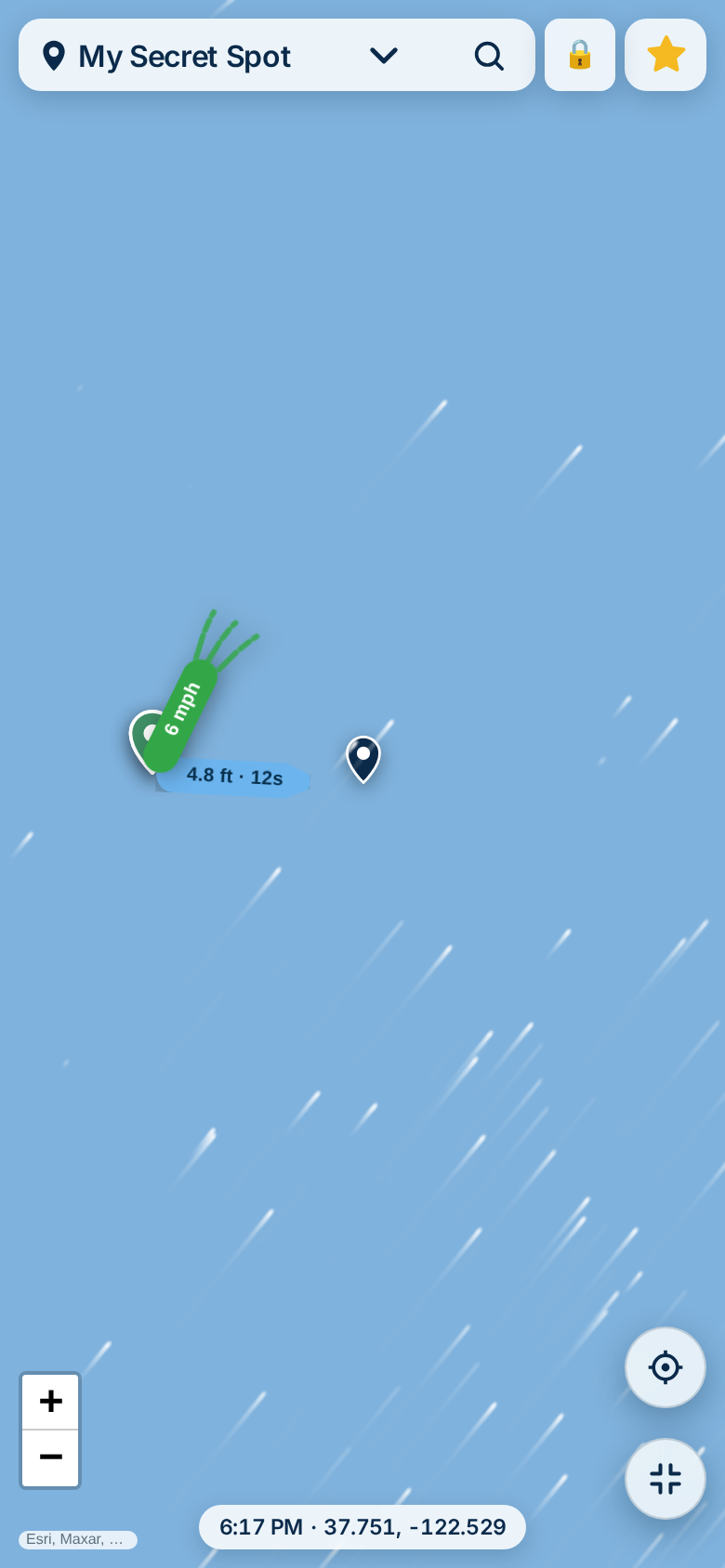
- 保存后就像右图:名字出现在顶部栏,星星变金色 = 已收藏,🔒 表示私人、只有你看得到;这个钓点同时会加入你的首页墙。下面第二排左图是落针那一刻的全屏样子,右图是放大成全屏地图、顶栏显示你自己起的名字。
- 以后想改名:在首页编辑模式点 ✎,或在预报页打开该钓点再点 ✎。
- 也可以点顶部栏右边的 🔍 搜索地名来找钓点,再点 ⭐ 加入。
- In the Forecast tab, press and hold the map for 1 second (away from existing markers). A green pin drops anywhere you hold, and “⭐ Save this point” appears below.
- Tap Save and a name box pops up: type your own name for the place (e.g. “My secret spot”) and confirm.
- Saved, it looks like the right screenshot: the name sits in the top bar, the star turns gold = saved, and 🔒 means private — only you can see it. The spot also joins your Home wall. Below: the full-screen moment the pin drops (left), and the full-screen map with your own name in the top bar (right).
- Rename it anytime with ✎ in Home edit mode, or from the spot itself in the Forecast tab.
- You can also tap 🔍 in the top bar to search for a place by name, then star it ⭐ to add it.
3看懂预报页Reading the Forecast page
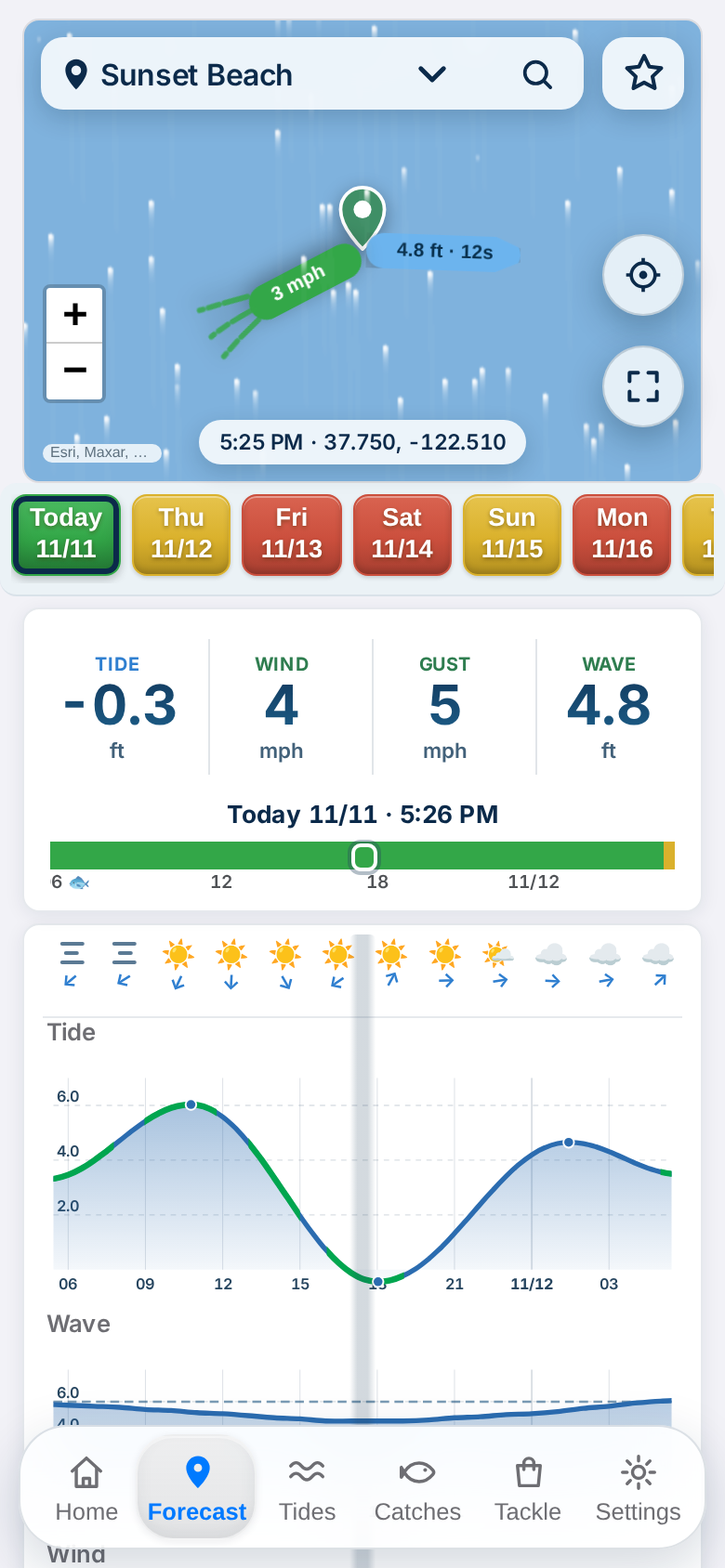
- 顶部彩色日期条:点任意一天看那天详情,颜色和首页同一套标准。
- 中间四个大数字:潮高、风速、阵风、浪高——显示的是「现在」或你选中那一刻的数据,标题变色表示该项超出你的标准。
- 手指拖动中间的灰色竖条,下方图表会跟着滑动,数字实时变成那一刻的数据;拖过午夜会自动跳到下一天。
- 时间轴上的 🐟 标记是鱼活跃时段(综合月相、潮汐转流和日出日落);详情里还会给出 🎯 黄金时段:当天风浪最合标准的一段,转流前后还有加分;没有合适时段它会直说没有。
- 地图上的小旗:绿旗是风(方向与风速),蓝旗是浪(浪高+周期秒数);旗飘动的速度就是当时风速的快慢。
- The coloured day strip on top: tap any day to see it in detail — same colour standard as Home.
- The four big numbers — Tide, Wind, Gust, Wave — show conditions for “now”, or for the moment you scrub to. A title turns colour when that item is over your standard.
- Drag the grey centre column and the charts slide underneath it while the numbers update to that moment; drag past midnight and it rolls into the next day.
- The 🐟 marks on the time axis are fish-activity peaks (moon phase + tide turns + dawn/dusk combined). Details also show the 🎯 Golden Window: the calmest, most fishable stretch of the day, with a bonus around tide turns — and it says so plainly when there isn't one.
- Flags on the map: the green flag is wind (direction and speed), the blue flag is waves (height + period in seconds). The flags flutter at the speed of the actual wind.
4绿黄红是怎样算的——用你自己的标准How the colours are decided — your own standard
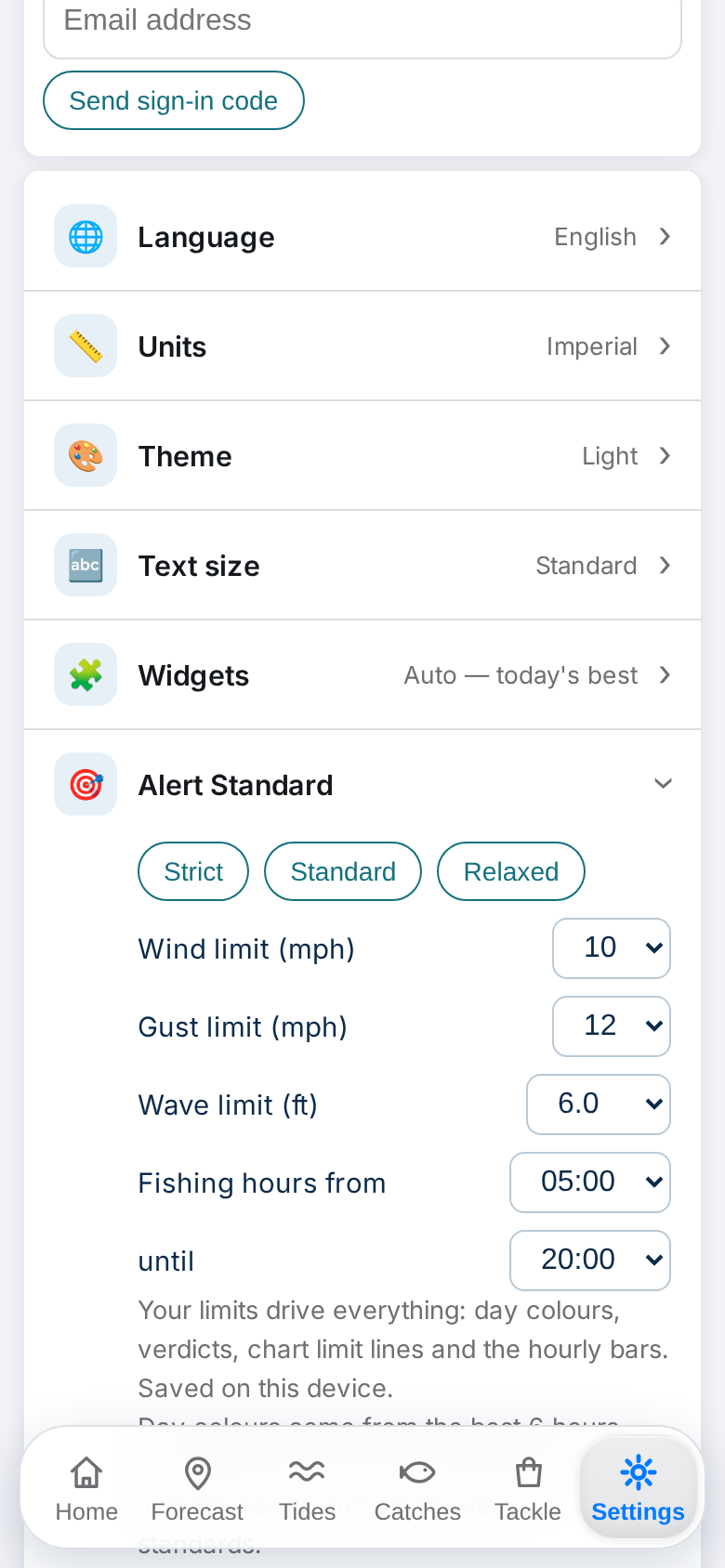
- 判定不是看全天平均,而是取你钓鱼时段内最佳的 6 小时,把平均风速、阵风、浪高跟你的标准比:全部达标 = 绿;接近 = 黄;超出 = 红。
- 标准由你定:设定 → 警戒标准,有「保守 / 标准 / 宽松」三档一键选,也可以逐项自选风、阵风、浪的上限(浪最高可以设到 10 英尺)。
- 还可以改钓鱼时段(默认早上 5 点到晚上 8 点)——判定只计算你真的会出钓的那些小时。
- 改完标准,首页颜色、每天的判定、图表里的标准线会全部立刻跟着变。
- The verdict is not a whole-day average. The app takes the best 6 hours inside your fishing hours and compares their average wind, gust and wave height against your limits: all within = green; close = yellow; over = red.
- The limits are yours to set: Settings → Alert Standard. Pick Strict / Standard / Relaxed in one tap, or set wind, gust and wave individually (wave can go up to 10 ft).
- You can also change your fishing hours (default 5 AM – 8 PM) — only the hours you would actually fish are judged.
- Change the standard and the Home colours, every day's verdict and the limit lines on the charts all update immediately.
5潮汐页:一次看整月Tides: a whole month at a glance
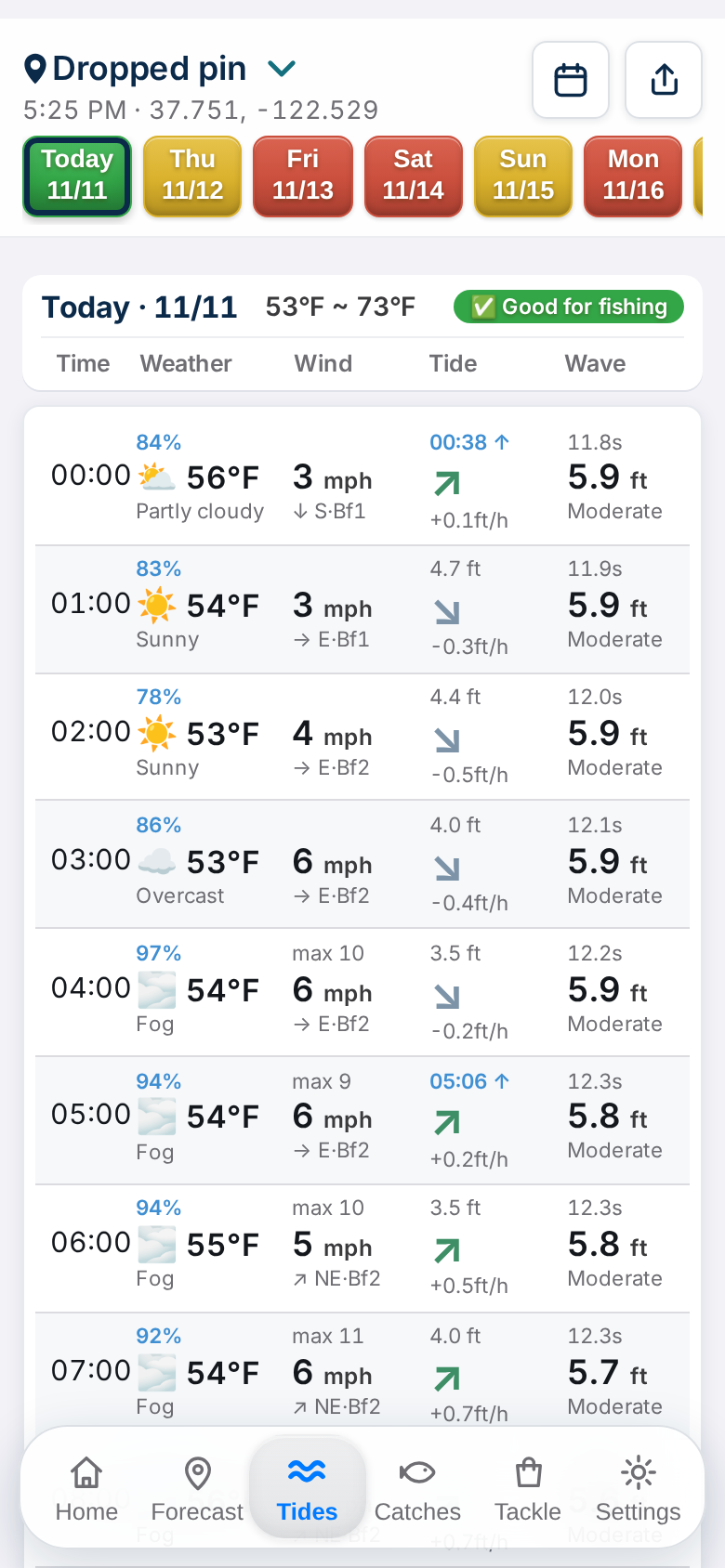
- 「潮汐」页覆盖 30 天:前约 16 天有完整的风、浪判定;再往后到月底,潮汐时间和曲线都有(风浪预报本身最远约 16 天)。
- 每小时一行:天气、风、潮高(含涨/退速度)、浪高和周期,计划出钓时间最方便。
- 顶部先选钓点和日子;右上角日历按钮可以直跳某一天。
- The Tides tab covers 30 days: full wind-and-wave verdicts for about the first 16 days, then tide times and curves to the end of the month (wind/wave forecasts themselves reach ~16 days).
- One row per hour: weather, wind, tide height (with rise/fall rate), wave height and period — the easiest way to plan a session time.
- Pick the spot and day at the top; the calendar button jumps straight to a date.
6把一天的预报做成长图发给朋友Share a whole day as one long picture
- 在「潮汐」页(上一节图片右上角)点分享图标,会生成一张长图卡:当天的判定、黄金时段、鱼活跃时段和 24 小时逐小时数据全在里面。
- 长图可以直接发微信、Facebook 或短信——朋友不用装 app 也能看懂。
- On the Tides page (share icon, top right in the screenshot above), tap share to generate a long picture card: the day's verdict, golden window, fish-activity peaks and the full 24-hour table.
- Send it over WeChat, Facebook or text — friends don't need the app to read it.
7渔获分享与 AI 认鱼Catch reports & AI fish ID
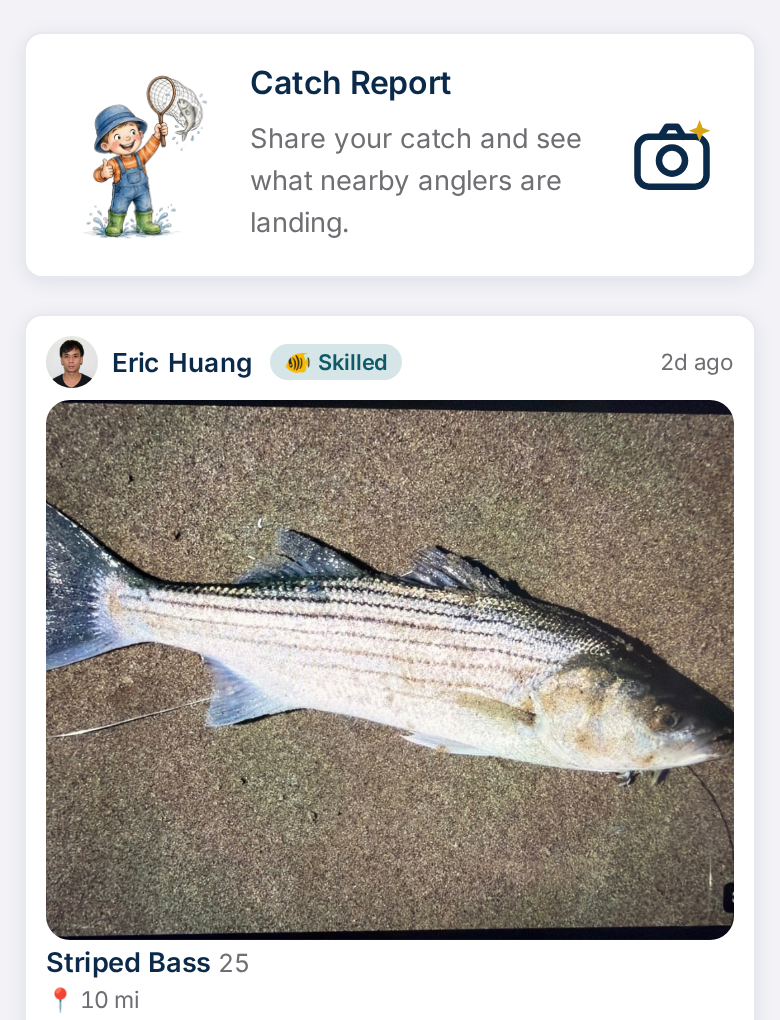
- 「渔获」页可以看附近钓友钓到什么,也可以分享自己的渔获(分享前先去「设定」页登录,免费)。
- 点右上角的相机按钮发帖:选照片、填鱼种和大小。位置显示有三档:钓点名 / 大约区域(默认,约 5 公里范围)/ 不显示——不会暴露你的精确钓点。
- 上传照片后,点表单里的虚线 AI 按钮,会自动帮你识别鱼种、估算大小再填好(认错也可以自己改)。
- 别人的渔获可以点赞、回复;点开照片是全屏查看。
- The Catches tab shows what nearby anglers are landing, and you can post your own (sign in first on the Settings tab — it's free).
- Tap the camera button (top right) to post: pick a photo, add the species and size. Location display has three levels: spot name / general area (default, ~5 km) / hidden — your exact spot is never exposed.
- After uploading a photo, tap the dashed AI button in the form and it will identify the species and estimate the size for you (you can still edit anything it fills in).
- You can like and reply to other anglers' catches; tap a photo for the full-screen view.
8登录同步 + 主屏幕小组件Sign-in sync & the home-screen widget
- 在「设定」页顶部登录:Apple / Google 一键登录,或者用电邮收 6 位验证码登录。
- 登录后,你的钓点墙、收藏、隐藏名单会自动同步到你的账号:换手机、或者手机和平板一起用,都是同一份。
- 想打开手机就看到判定:长按主屏幕 → 添加小组件 → 选 Fishing Tides。小组件有两种模式——「今日推荐」(自动选今天最好的钓点)和「指定钓点」,在 app 的设定 → 小组件里切换。
- Sign in at the top of the Settings tab: one-tap Apple / Google, or a 6-digit code by email.
- Signed in, your wall, favourites and hidden list sync to your account automatically — a new phone, or phone + tablet, always show the same spots.
- For the verdict on your home screen: long-press the home screen → add widget → Fishing Tides. The widget has two modes — “Today's best” (automatic) and a spot you pick — switchable in the app under Settings → Widgets.
💡 设定里还有:语言(7 种)、单位(英制 / 航海 / 公制)、外观主题(含深色)、字体大小——都按自己习惯改,判定逻辑不受影响。
💡 Settings also has: language (7 options), units (Imperial / Nautical / Metric), appearance themes (including dark) and text size — set them how you like; the verdict logic is unaffected.
9隐藏不想看的钓点 / 分享你的钓点Hide spots you don't want / share yours
- 系统推荐的钓点里有不想看的:在「预报」页打开钓点选择,点该钓点旁边的 ⊘ 隐藏,它就不再出现;想恢复去设定 → 已隐藏钓点。
- 你自己保存的钓点默认是私人的(🔒)。想分享给其他钓友,在钓点上切换成 🌐 分享:公开的只有名字和位置,匿名分享,不会显示是你加的,而且随时可以收回。
- 别人分享的钓点如果位置不对,可以点 ⚑ 举报,举报多了会自动隐藏。
- Don't want a recommended spot? Open the spot picker in the Forecast tab and tap ⊘ Hide next to it — it disappears; restore it anytime in Settings → Hidden spots.
- Your own saved spots are private by default (🔒). To share one, switch it to 🌐 Shared: only its name and location become public, anonymously — never who added it — and you can take it back anytime.
- If a shared spot is in the wrong place, tap ⚑ to report it; spots reported by several anglers are hidden automatically.